Blazor in the Cloud
elmah.io logs the errors in your Blazor application, whichever hosting model you picked. Blazor Web App, Blazor Server and Blazor WebAssembly are all supported, and uncaught exceptions are logged as soon as elmah.io is added to your project.
Errors in a Blazor application are easy to miss. Server-side errors end up in a log on the web server, and WebAssembly errors happen in the browser of your user, where you will never see them. With elmah.io, both are stored in the same place, searchable and ready to notify your team.
Every Blazor hosting model
Pick the package that matches where your code runs:
- Blazor Server: install
Elmah.Io.Extensions.Logging, and optionallyElmah.Io.AspNetCore.ExtensionsLoggingto include the URL and other HTTP details. - Blazor WebAssembly: install
Elmah.Io.Blazor.Wasm. - Blazor Web App (.NET 8 and newer): install both. The server project gets
Elmah.Io.Extensions.Loggingand the client project getsElmah.Io.Blazor.Wasm, so errors are logged whichever render mode a component uses, including Interactive Auto.
The packages can be installed side by side, since they live in different projects.
Log with ILogger
Everything you log through ILogger ends up in elmah.io, not only uncaught exceptions. Inject an ILogger into a component and log errors, warnings and information messages like you do in any other .NET application.
Catch an exception in your component and pass it to LogError to get the exception type and the stack trace in elmah.io. In Blazor WebAssembly you can also use error boundaries to catch exceptions from a part of the UI and log them.
Know where it happened
In Blazor Server, the Elmah.Io.AspNetCore.ExtensionsLogging package adds the HTTP context to your messages, like the URL and the status code, so you can see which request failed.
Blazor Server talks to the browser over SignalR, which is why some errors are logged with the URL /_blazor. Add the current URL from NavigationManager to a logging scope when you log, and you see the page the user was on. The documentation shows how.
Fully documented
The documentation walks through every hosting model, configuration through appsettings.json and logging from components. The Blazor Web App sample combines a server and a client project, so you can see both packages working together.
Read the Blazor documentation or browse the samples on GitHub.
Let your AI agent read your Blazor errors
Connect Claude Code, Cursor, VS Code or Visual Studio to the elmah.io MCP server. Your agent can list new errors, read the stack trace and message details, check what changed after a deployment, and mark an error as fixed once you have shipped the change.
In Claude Code, add the server with one command:
claude mcp add --transport http --client-id claudecode elmahio https://mcp.elmah.io/mcpThe MCP server is included on every plan and is currently in beta. Set up the MCP server.
Set up in a few lines
Install the package for your hosting model, add elmah.io to the logging configuration in Program.cs with your API key and log ID, and log as usual.
# Blazor Server, and the server project of a Blazor Web App
dotnet add package Elmah.Io.Extensions.Logging

# Blazor WebAssembly, and the client project of a Blazor Web App
dotnet add package Elmah.Io.Blazor.Wasm
builder.Logging.AddElmahIo(options =>
{
options.ApiKey = "API_KEY";
options.LogId = new Guid("LOG_ID");
});@page "/"
@inject ILogger<Index> logger
@code {
protected override void OnInitialized()
{
try
{
object text = "Text";
var cast = (int)text;
}
catch (InvalidCastException e)
{
logger.LogError(e, "An error happened");
}
}
}Blazor WebAssembly runs in the browser, so anyone can read the API key in the developer tools. Use an API key that only has the Messages | Write permission, so it can be used to log and nothing else. Read how to configure API key permissions. Your API key and log ID are shown on the install page when you sign up.
How it looks
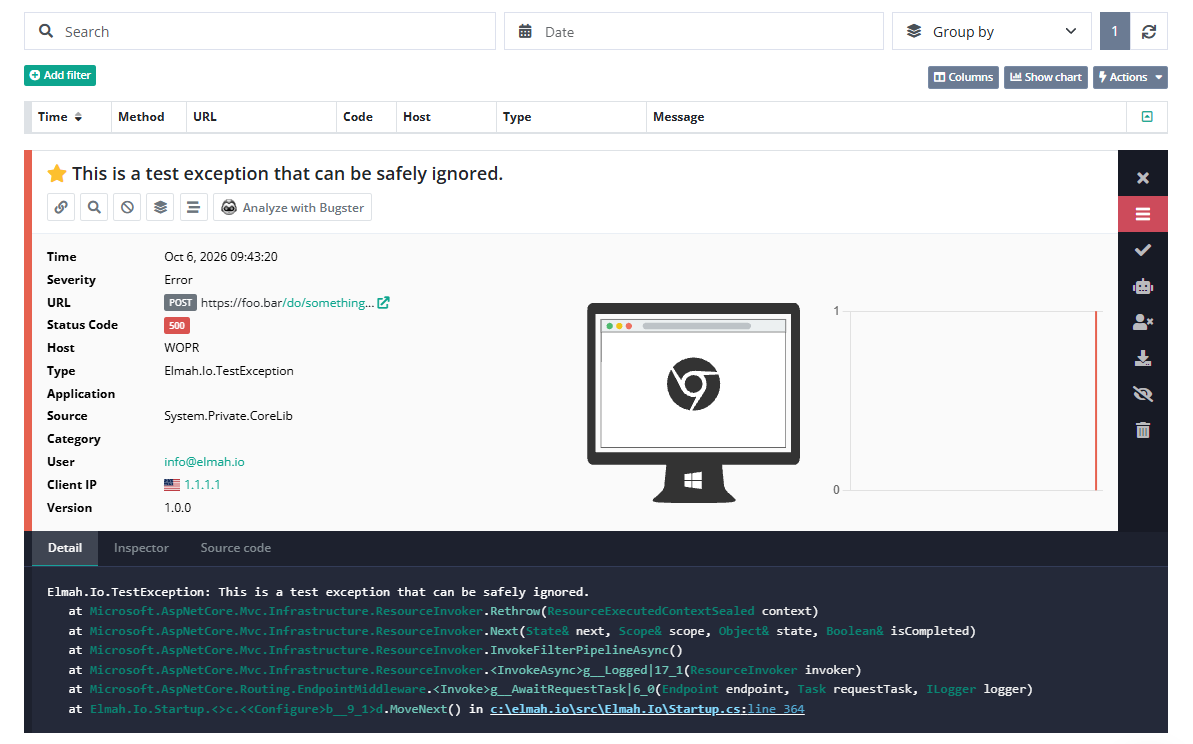
Here is what elmah.io logs for a message from a Blazor application:
- The message, with its severity and category.
- The exception type and stack trace when you pass an exception.
- In Blazor Server with the ASP.NET Core package, the URL, the status code and other request details.
- In Blazor WebAssembly, the message and the exception. HTTP details like cookies are not included.
Frequently asked questions
Which Blazor hosting models are supported?
Blazor Web App, Blazor Server and Blazor WebAssembly. Each hosting model has its own NuGet package, and Blazor Web App uses both.
Which packages do I need for a Blazor Web App?
Install Elmah.Io.Extensions.Logging in the server project and Elmah.Io.Blazor.Wasm in the client project, and call AddElmahIo in the Program.cs file of each. Then errors are logged whichever render mode a component runs in.
Why do some errors show /_blazor as the URL?
Blazor Server updates the page over SignalR, so the request that fails is to /_blazor. Add the URL from NavigationManager to a logging scope when you log an error, and elmah.io shows the page the user was on.
Is it safe to put the API key in a WebAssembly app?
The key is downloaded to the browser of every user, so treat it as public. Give it the Messages | Write permission only, and it cannot be used for anything but logging.
Can my AI coding agent read these errors?
Yes. Connect the elmah.io MCP server to Claude Code, Cursor, VS Code or Visual Studio. It is included on every plan and is currently in beta.